

When We Say a Student Can’t Learn

Via Saved by the Bell Hooks (the site might be the best thing ever)

Teaching is a profession that can be both extraordinarily rewarding and extraordinarily frustrating–sometimes simultaneously. Sometimes we’re tempted to throw our hands up in the air and proclaim that this student just can’t learn. And sometimes we do.

And when we as educators say that a student can’t learn, we’re saying a lot of other things, even if they’re not things we really mean or believe. It’s such a tiny statement–a throwaway line when we’re frustrated–and, yet, it has a million connotative meanings that don’t even occur to us as the words escape our lips.

When we say a student can’t learn, we’re saying that we’ve given up on her.

When we say a student can’t learn, we’re saying that his needs as a learner are not a priority.

When we say a student can’t learn, we might mean we don’t know how to teach her, but we’re saying that she needs to shape up and get with the program.

When we say a student can’t learn, we’re saying that we’ve tried all the tricks in our toolbox and are afraid to ask for help. Someone might judge us, might say we’re a bad teacher, might tell us that if we were more competent, built better relationships, went to this PD, we’d be fine. Look at the teacher down the hall. She’s fine.

When we say a student can’t learn, we’re saying “I’m not a bad teacher. I’m doing everything I know how.”

When we say a student can’t learn, we’re saying that we’re scared.

When we say a student can’t learn, we’re saying “I don’t know how to help this kid and the 24 others in my class.”

When we say a student can’t learn, we’re saying we don’t care about her.

When we say a student can’t learn, we’re saying that we are tired.

When we say a student can’t learn, we’re saying he’s not my problem.

When we say a student can’t learn instead of “I don’t know what to do, and…”, “I’ve tried everything I know how, but…” or “I don’t know how to teach her, so…” we’re saying that it’s easier to put the responsibility for making sure everyone learns on the student rather than on ourselves.

When we say those words, we’re saying so many things. Deciding what we really mean and taking action will determine how successful we are in teaching that student.

When we hear someone else say those words, we need to take a step back and withhold judgement and offer our support as colleagues to help turn the discussion toward something proactive and helpful. In order to try to build a school culture where people feel safe saying “I don’t know what to do” and asking for help, we need to offer that help and support freely and without judgement. We can’t look at our colleagues and say “This teacher can’t learn,” either.
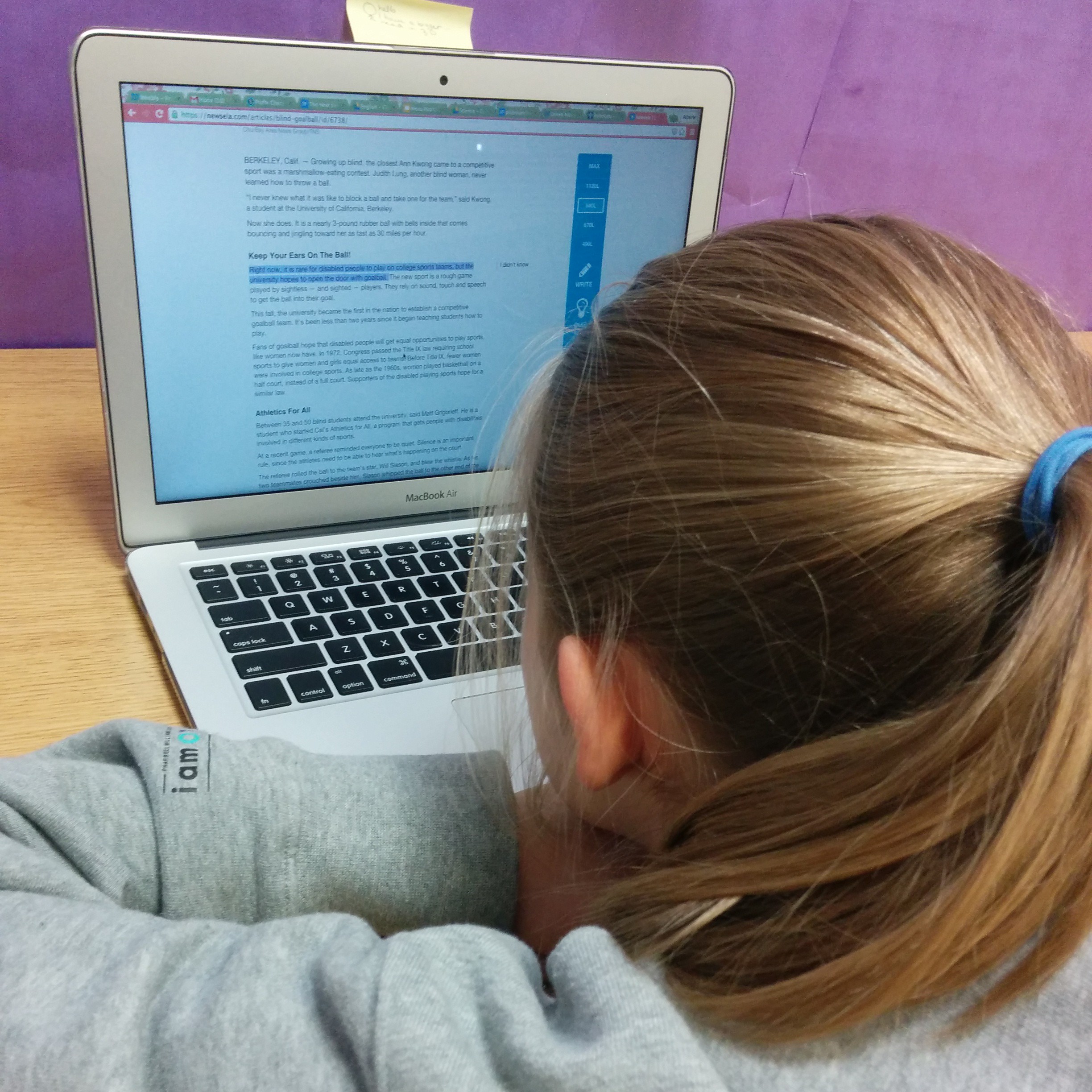
Leveraging 1:1 Laptops for Assistive Tech

Leveraging 1:1 Laptops for Assistive Tech

Assistive tech is a huge topic. We can find all sorts of solutions for students: “no-tech”, low-tech, or high-tech, ranging from free to prohibitively expensive. The best assistive tech tools, though, are the ones that students can transition with and that will lead to independence. In special education and intervention, our goals are almost always transfer and independence. When we start leveraging the technology and resources that are already in a student’s possession, we can encourage that transfer. I’ve found a number of tools that have worked well for my students (generally students with mild to moderate LD) that are either built-in accessibility features or free apps or plug-ins. So far they’ve been working really well for us. These are a few of the tools we’ve been using for reading and writing. In a future post I’ll talk about some organizational tools and some other accessibility features and apps.

(Note: These are just things that are currently working in my classroom. I’m getting no compensation of any kind from any of these programs. I’m just sharing what’s working of my students and for me right now)

Assistive Tech for Reading

There are two different options we’ve been using for text-to-speech in order to assist students who have reading difficulties. One is a Chrome plug-in called SpeakIt, and the other is just the accessibility feature found in Acrobat Reader.

Speak It

SpeakIt is a Chrome extension that reads text on websites, including within Google Drive. It’s free and easy to use. Students can easily customize the reading voice, which includes options that are much more natural sounding and more fluid than the ones available through the accessibility features within Chrome. It is also available as an iOS app as well. Students have really enjoyed using this app to help them access more difficult texts on websites that have been assigned for class reading, when doing research online, and, I think the best application we’ve found, to have their written work read back to them in Google Docs. This is actually a use that was discovered by a student. We had been talking about how important it is to read your own writing. Realizing that he often missed his own mistakes, this student decided that he would use the extension to have his computer read his writing to him, and then used what he heard to correct commonly confused words and other spelling and usage errors. It was pretty amazing. The one limitation of this extension is that it doesn’t read PDFs that are embedded into websites (like those on our school’s LMS), so those need to be downloaded and read to the student using Adobe Reader.

Acrobat Reader

The other program students have been using, Acrobat Reader, has accessibility features that will read the text of a PDF document (as long as it hasn’t been uploaded using a scanner or camera to PDF app). Students can have an entire document read to them, or select particular sections the voice is definitely not as natural sounding as the voices in SpeakIt, but it works. The only issue I can see is with reading academic texts. For example, one of my students used the text-to-speech function to help him read a textbook entry about the beginnings of Islam. The program had more than a little difficulty with non-English words, but the 7th grader I was working with had enough background knowledge from class to figure out that the pronunciations weren’t correct. It’s not as good as using a program like Kurzweil or Read & Write Gold, but it’s free and a great way to test out if this type of assistive tech will be useful for a student.

Assistive Tech for Writing

My students generally have pretty good keyboarding skills, and we’ve done a lot of work on organization and planning this year, but they really struggle with editing their own work, particularly when it comes to commonly confused words. While text-to-speech is quite helpful for many of them, speech-to-text is a bit too much support. As a group, my students have been very excited by the Chrome extension, Ginger.

Ginger

Ginger is not your typical spell checker. It looks for commonly confused words (like homophones or words with very similar spellings), and even makes suggestions for comma usage and grammar. It is a Chrome extension and can also be downloaded as a keyboard app for Android and iOS, as well as desktop version that integrates with Word. Unfortunately for us, it’s only available for PC in that form. I’ve found it to work much better than the spell-check that is integrated into Chrome. It has the option to correct one word in the sentence, the entire sentence, or ignore the suggestions. AND I can tell Ginger that, yes, my last name (or other words that I use frequently that spell-checkers don’t recognize, like “metacognitive” or “multisyllabic”) is indeed spelled correctly. And it will remember. Which is not just amazing for me, but also for my students who are from around the world and often have names that aren’t recognized by spell-check (and, being middle schoolers, are often offended by this). I also like that it highlights possible errors in blue, rather than with a red underline, which seems to make my kids anxious (especially if they experience a lot of difficulty with spelling). It’s not perfect, but I’ve found its suggestions to be much better than most. It’s great for when we’re working on our digital portfolios in Weebly. What’s not great is that it doesn’t seem to work within Google Drive. Students can copy and paste their text into a Ginger window, but most of my students aren’t going to take that step (mostly because they’re worried that they’ll accidentally delete the entire thing). I would love it even more if we could integrate it with one of the word processing programs (Word or Docs) that we already use.

What programs to you use to assist your students with reading and writing?